What CellLabel can do
Open your scans, count cells by hand or automatically, and export the results.
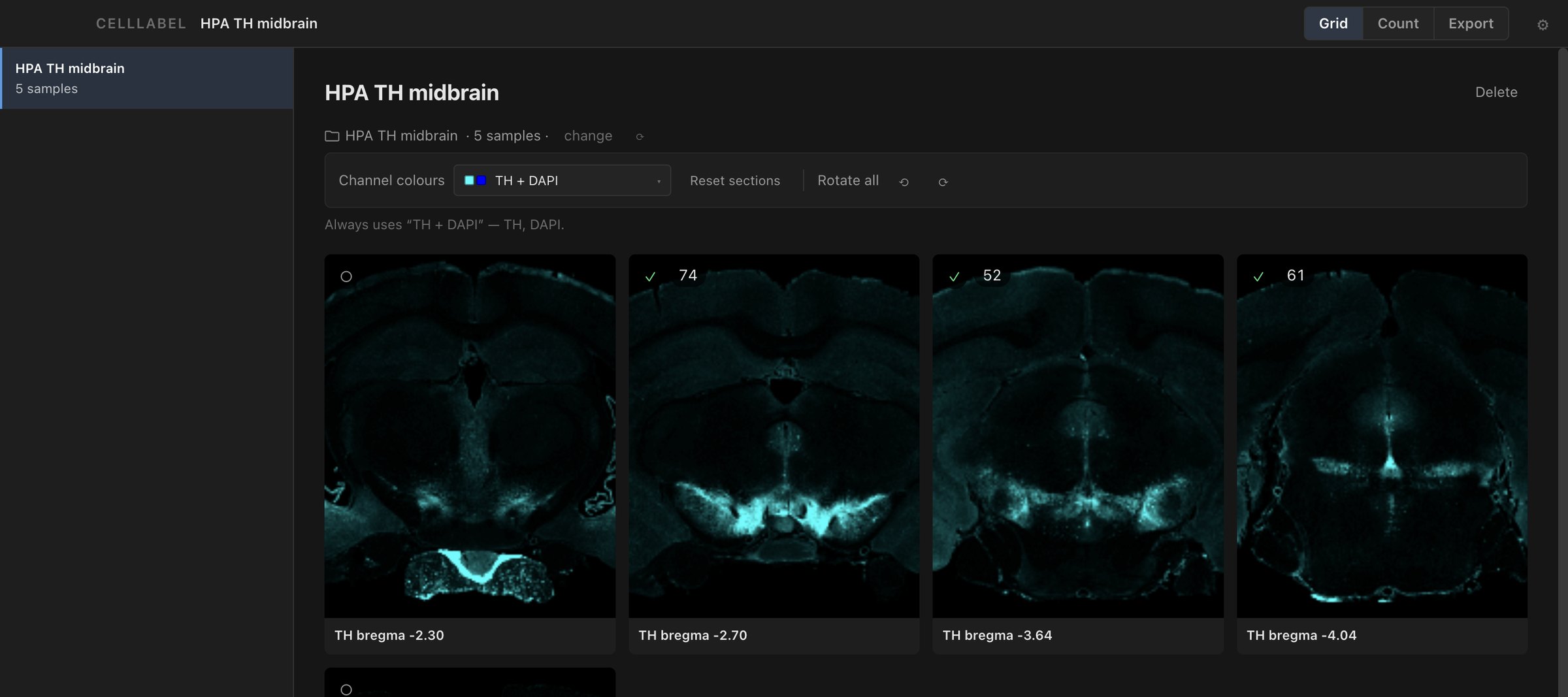
Open a folder of scans
Choose a folder or drag it onto the window. CellLabel adds every .vsi file inside it, including subfolders, and sorts them by name.
If you add new scans to the folder later, they show up the next time you rescan. Each thumbnail shows how many points it has.
Set up your channels
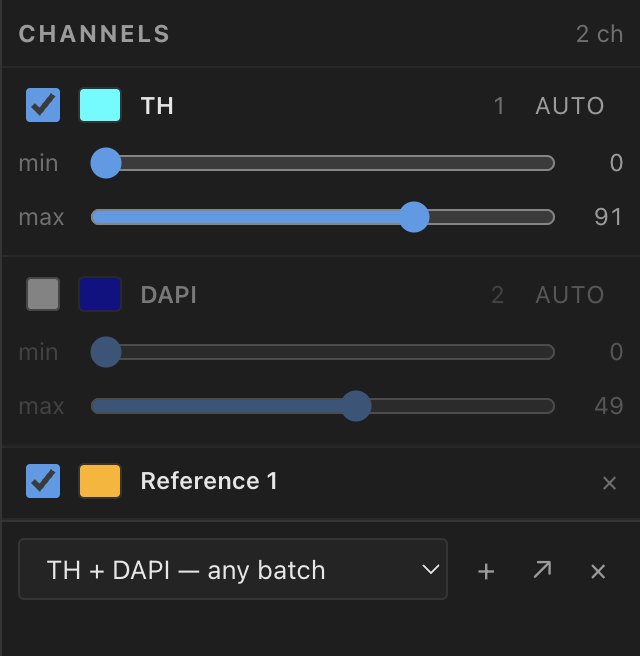
Give each channel a name, a color, and a min and max. Pick a color with one click, or choose any color you want.
Save your settings as a preset. CellLabel applies it to new sections from the same batch. You can also send it to a labmate.
Count cells by clicking
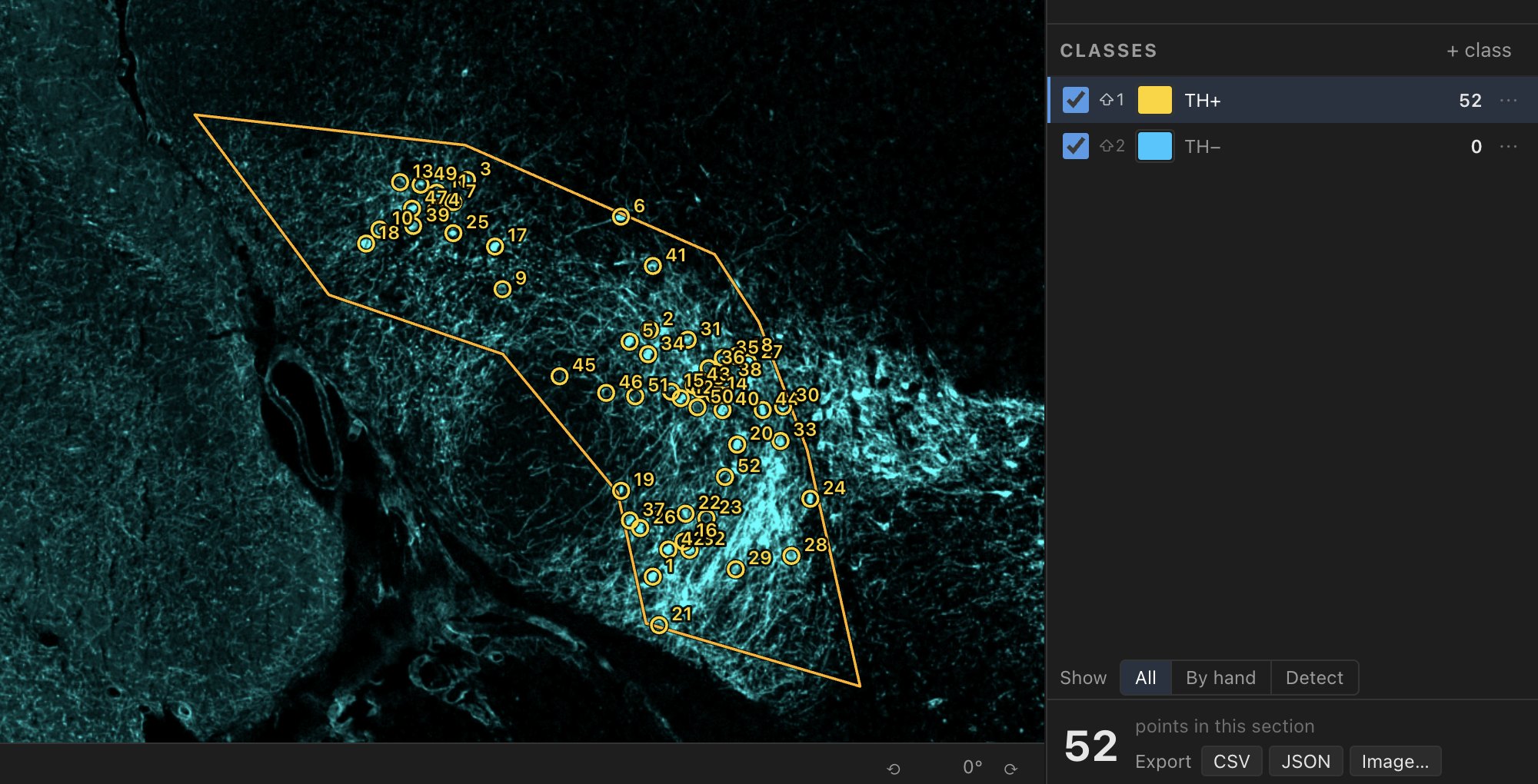
Pick a class and click each cell. The count updates as you go. Press ⌘Z to undo, or right-click a point to flag it for review.
You can hide any class from view. Hidden points are still counted and still exported.
Keys: 1–9 turns a channel on or off, ⇧1–⇧9 picks a class, and f fits the section to the window.
Count inside a region
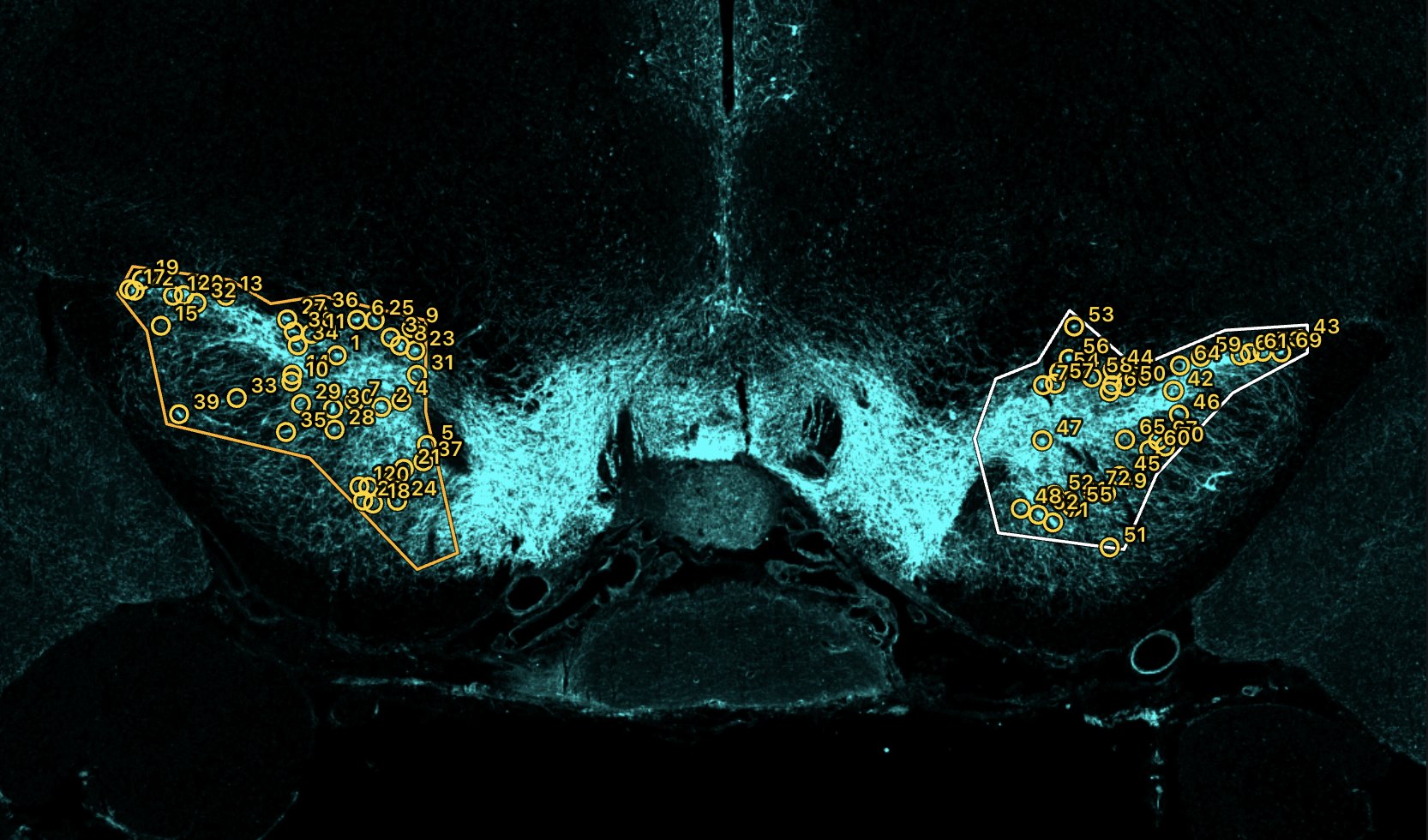
Draw an outline around a region, and CellLabel counts each class inside it. Once you name an outline, that name is offered on every section.
Each class gets one row, with a count for each region. A Detect run can count every region at once.
Build your own detection pipeline
A pipeline is a chain of steps called nodes. Each node shows what it measured, and you can preview its output on the image.
Each run keeps track of its own points. When you run it again, it only replaces those points. It won't touch points you clicked or points from other runs.
Save a pipeline as a template to use it on your next section, or send it to a labmate. It holds settings only, no images or counts.
Try a live pipeline on the home page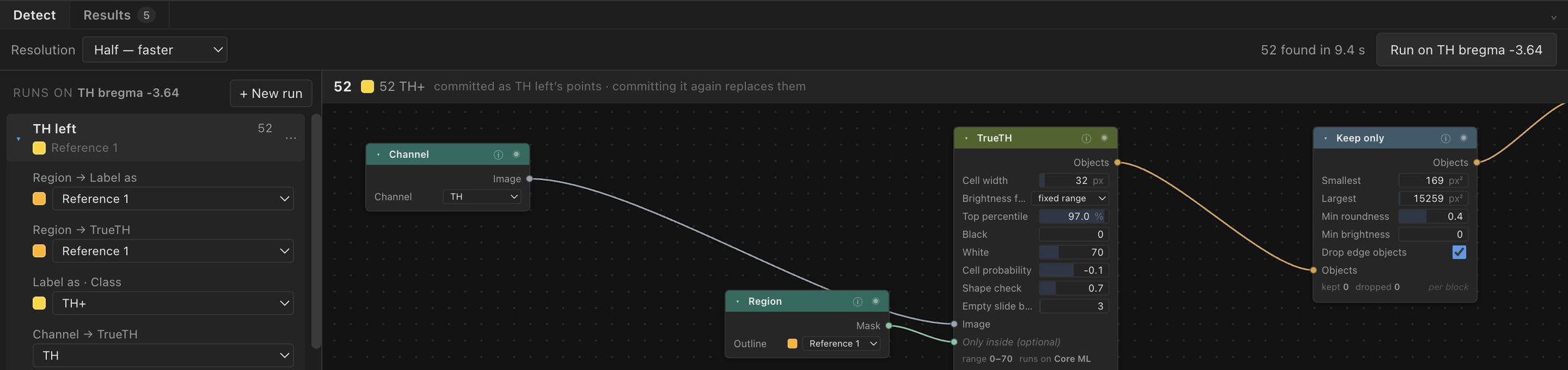
Copy your results into a spreadsheet
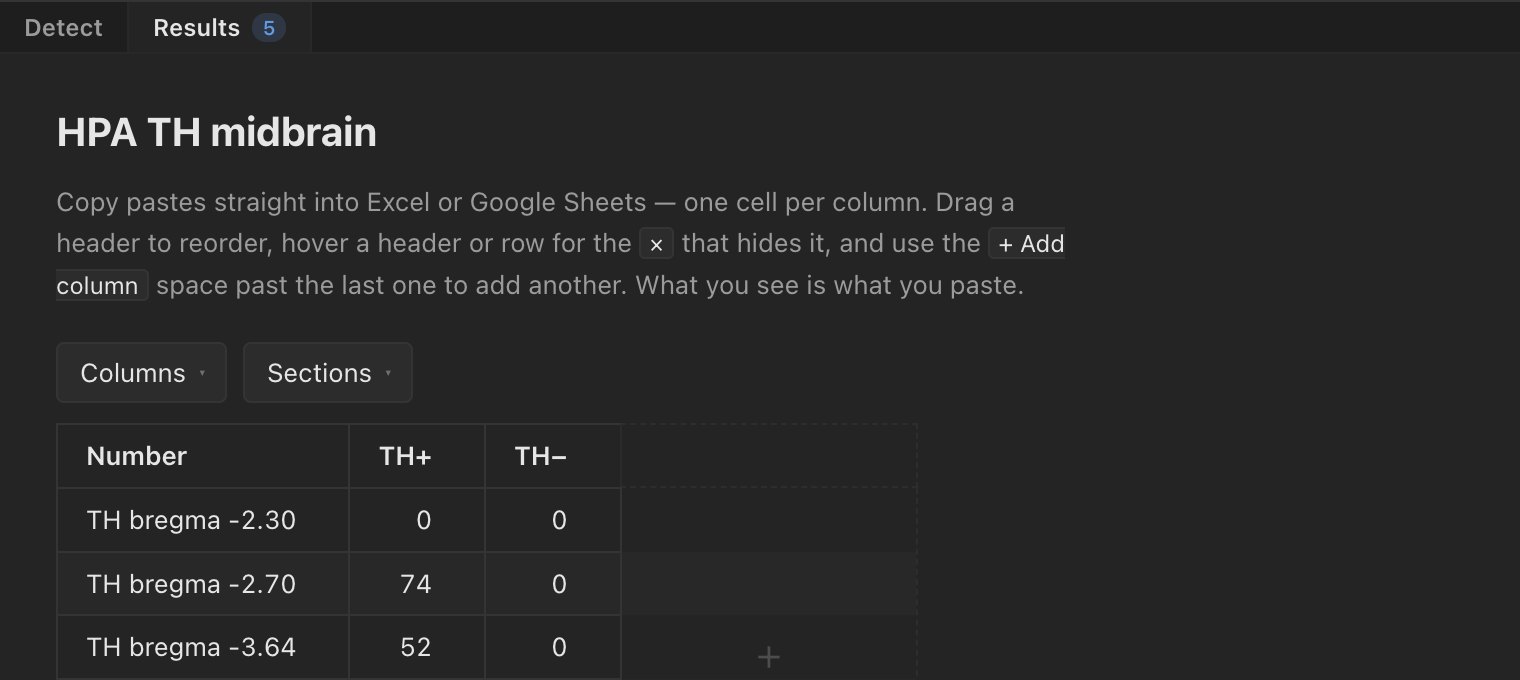
The results table has one row per section and one column per class. You can also add a column that divides one class by another. Copy it and paste it into Excel or Google Sheets.
You can hide sections you haven't counted yet, and they're left out of the average. What you copy matches what you see.
Export images and data
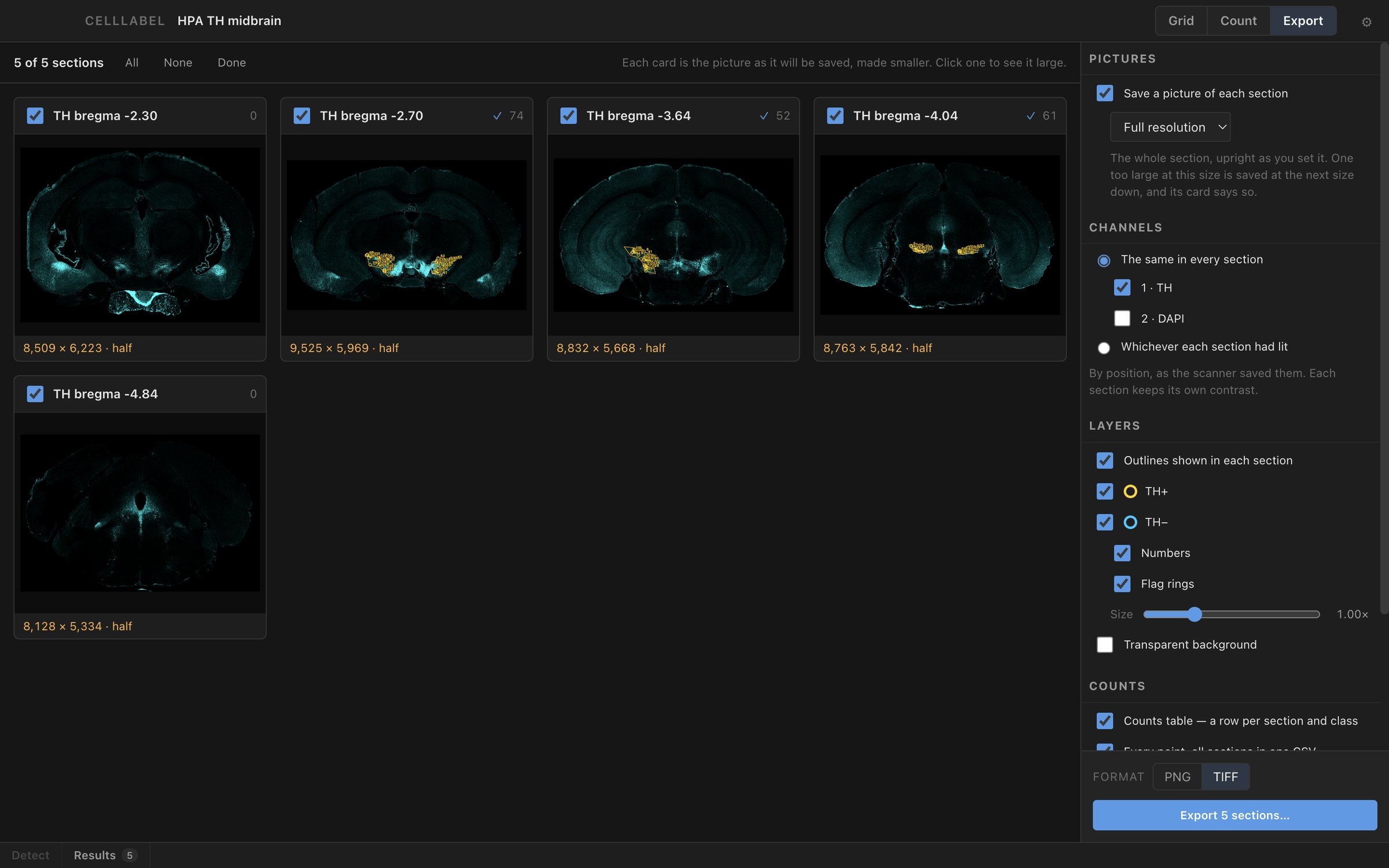
Each section shows a preview of the image it will export. Choose PNG or TIFF at full, half, quarter or eighth size. You can also export a counts table, a CSV of every point, and a JSON file for each section.
To export only the points, turn off every channel and turn on Transparent background.
Try it on your own scans
CellLabel works on Apple Silicon and Intel Macs.